Blog
-
Which Pages are created default when RestroFood install?
RestroFood plugin provides some default pages after installing the plugin. See the pages list below:
1. Admin ( admin page to login branch manager, kitchen manager, and delivery boy )
2. Branch Manager ( Branch Manager page to manage branch order )
3. Kitchen Manager ( KitchenManager page to manage branch order in the kitchen )
4. RestroFood ( RestroFood page is default product show page )
5. Delivery ( Delivery page for a delivery boy can see assigned order and he/she manage the order delivery ) -
How to show WooCommerce products?
Restrofood plugin provides an ajax shop page. Where users can see products easily and make a quick order. There have 3 ways to show products in this plugin.
- Using Shortcode
- Using RestroFood Template
- Using Elementor Widget
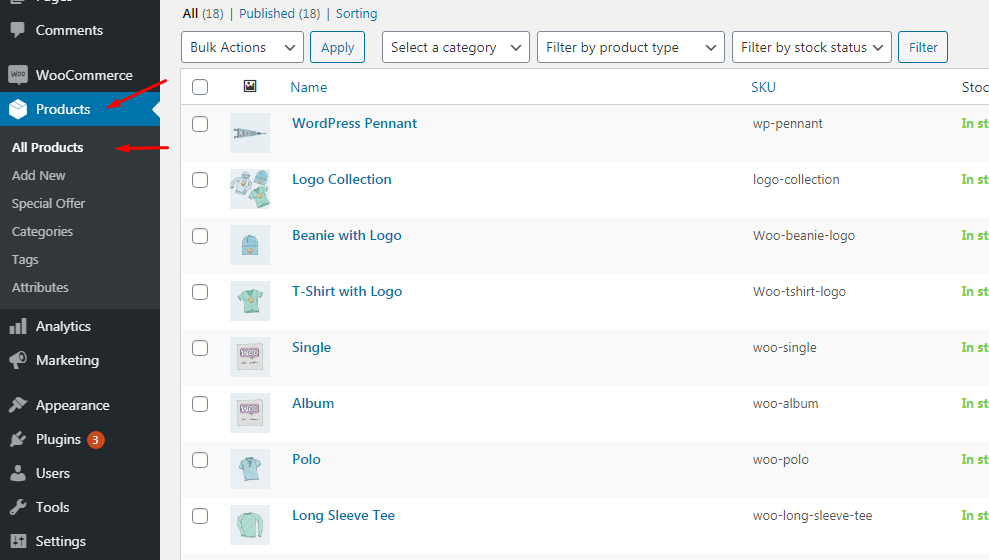
Make sure you are uploaded products before.
How to use the shortcode?
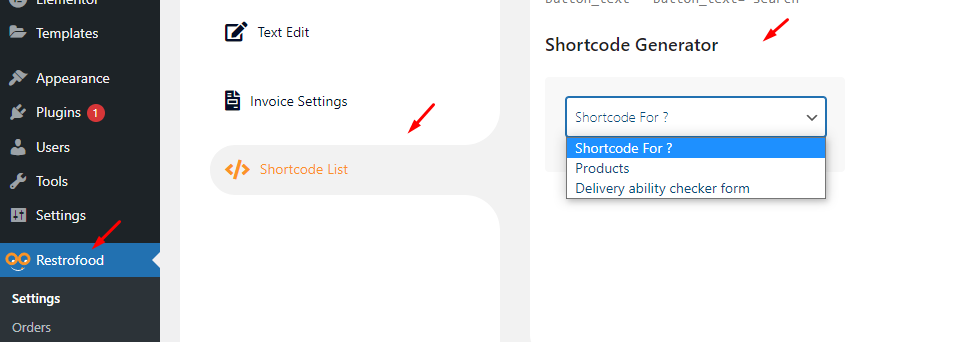
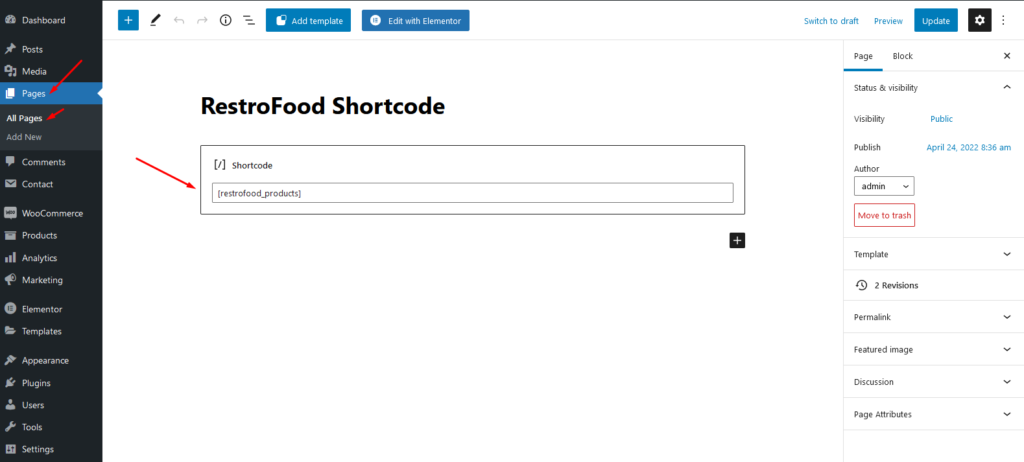
RestroFood plugin provides a shortcode to show products on any page easily.
How to set the Restrofood template?
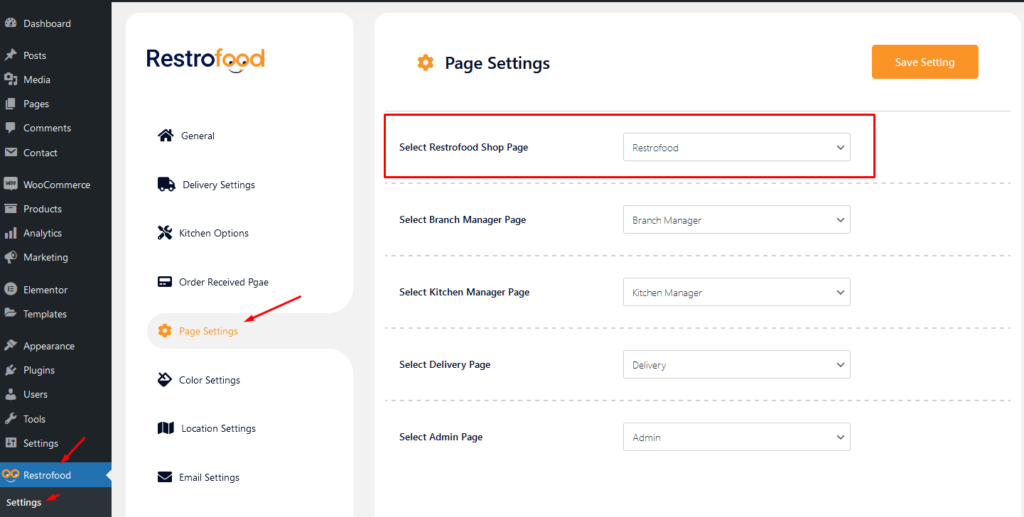
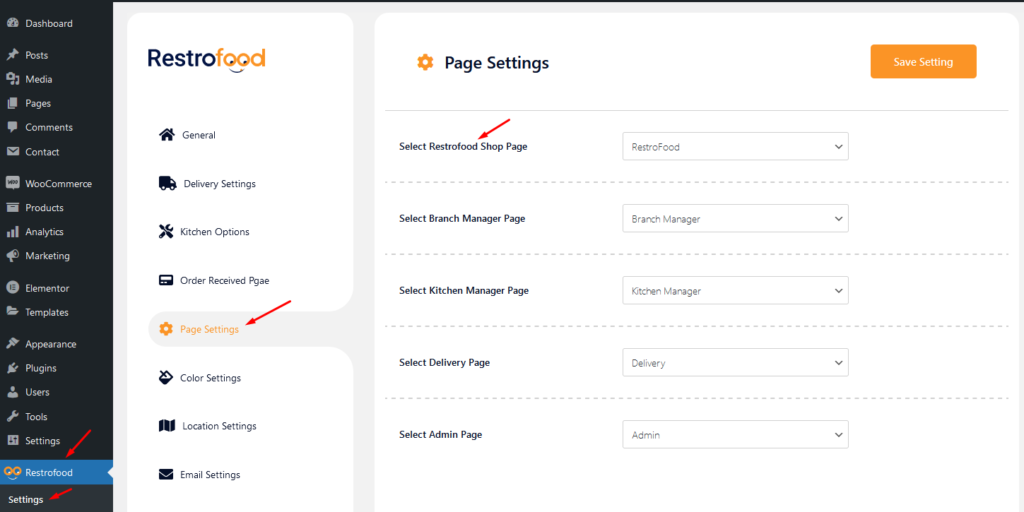
Go to Restrofood settings from admin and navigate page settings now select the page which page you want to show products from ( select restrofood shop page ) select option. The restrofood template will work automatically on the selected page.
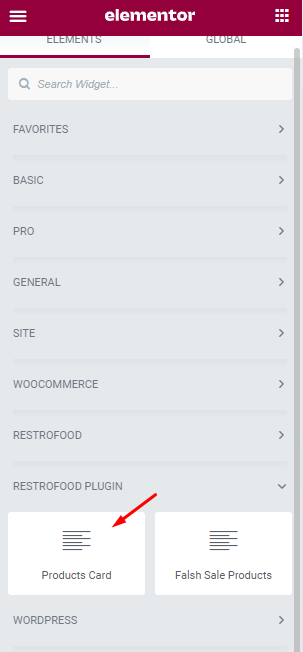
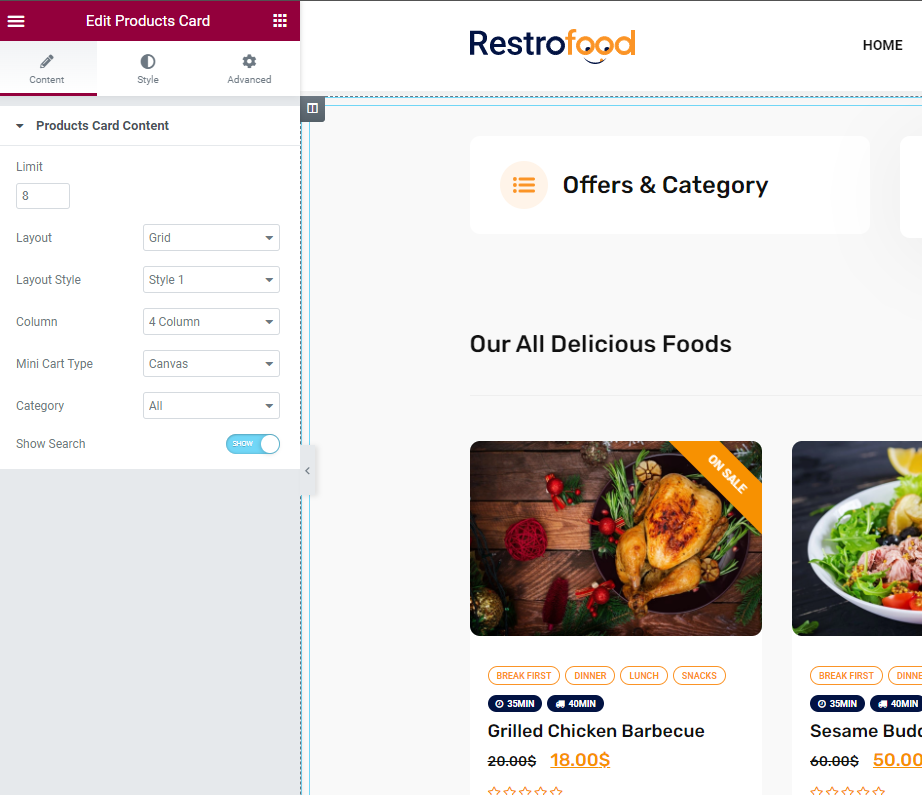
How to display products with the Elementor widget?
-
How to import product demo data?
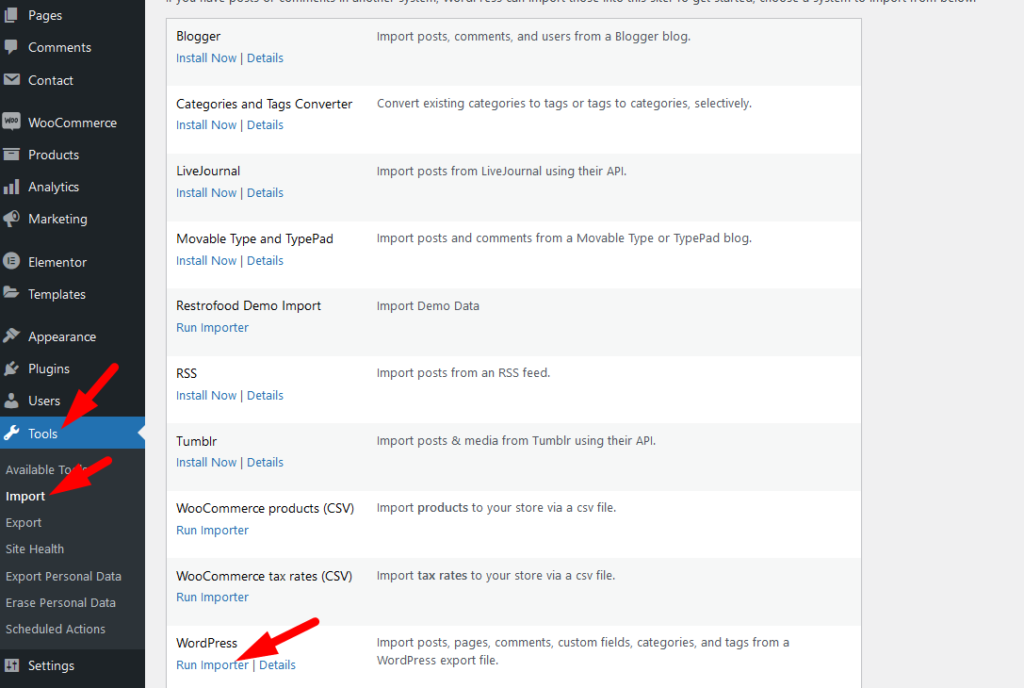
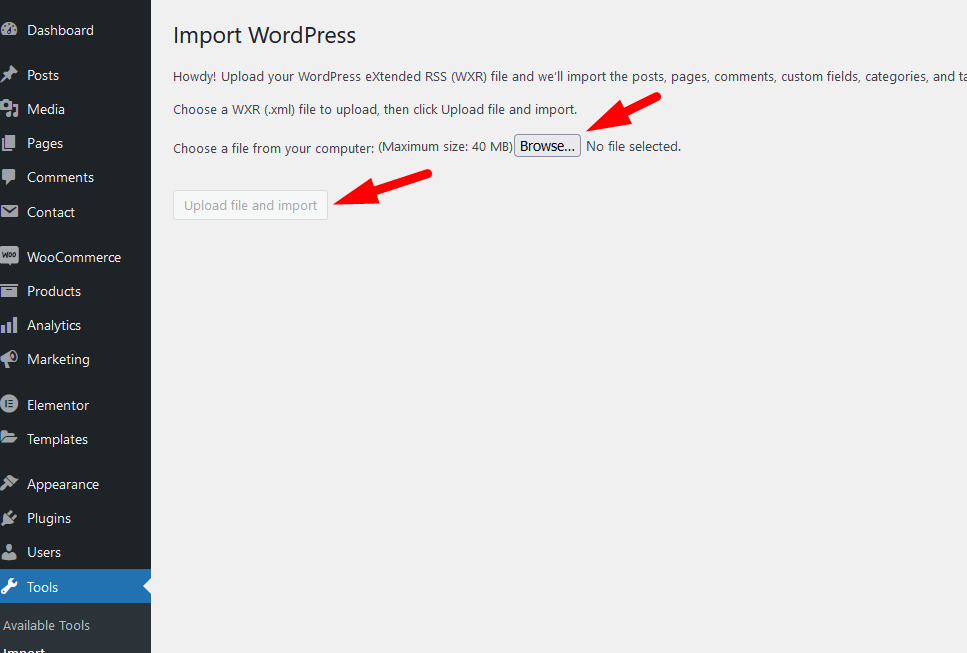
Upload the xml file.
Note: You should upload restrofood product xml first then restrofood media xml file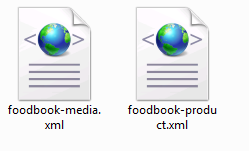
-
How to set the time zone?
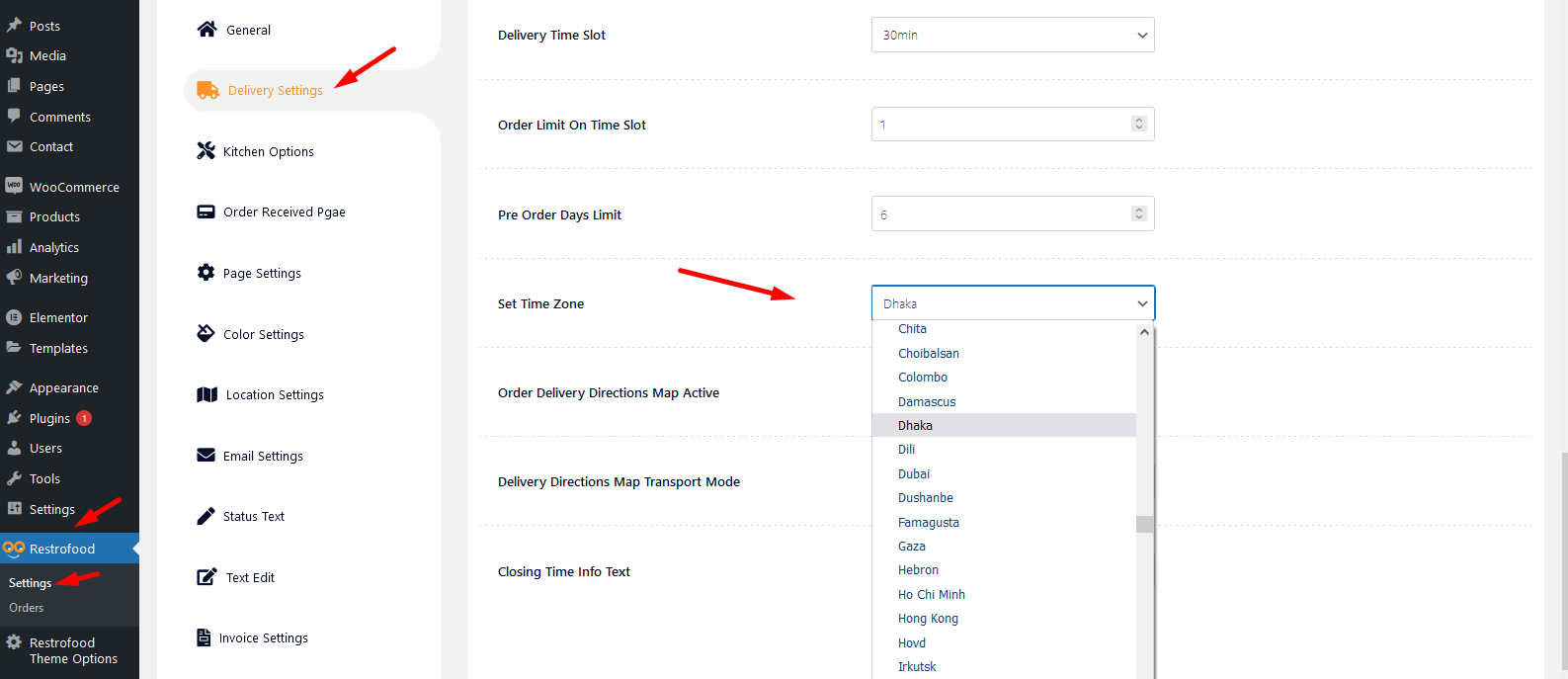
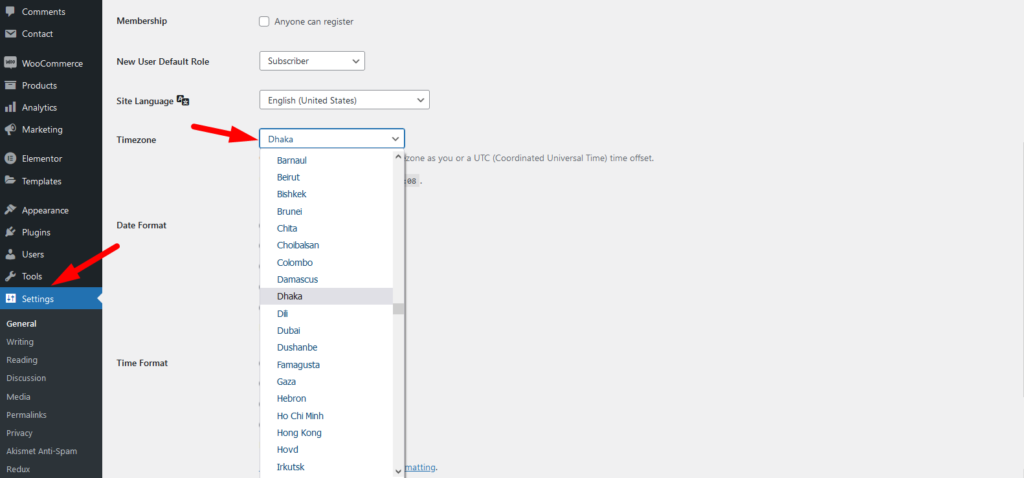
To work time and date properly with your time you need to settings restrofood plugin timezone from restrofood settings and WP admin settings -> general
Restrofood settings option:
WP admin settings option:
-
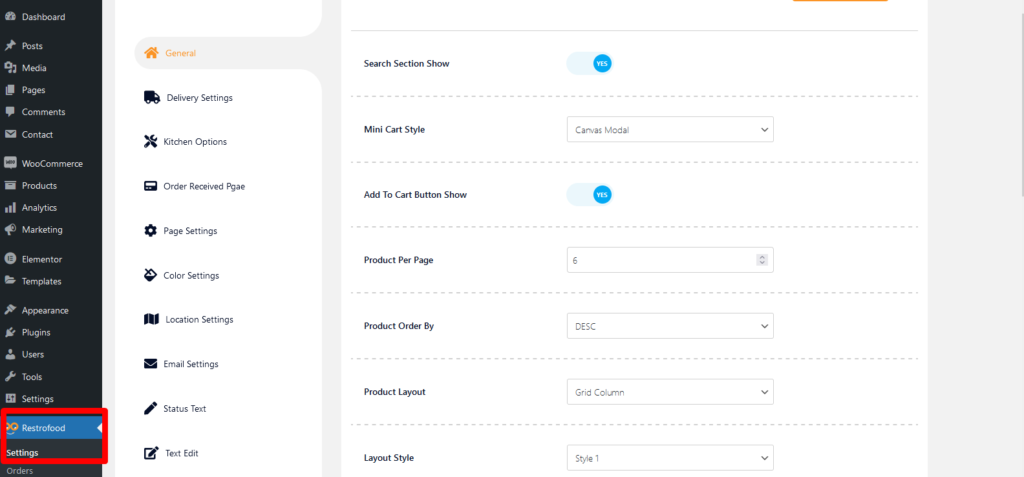
Where are the RestroFood settings options?
Go to Admin -> RestroFood
-
How to import theme demo data?
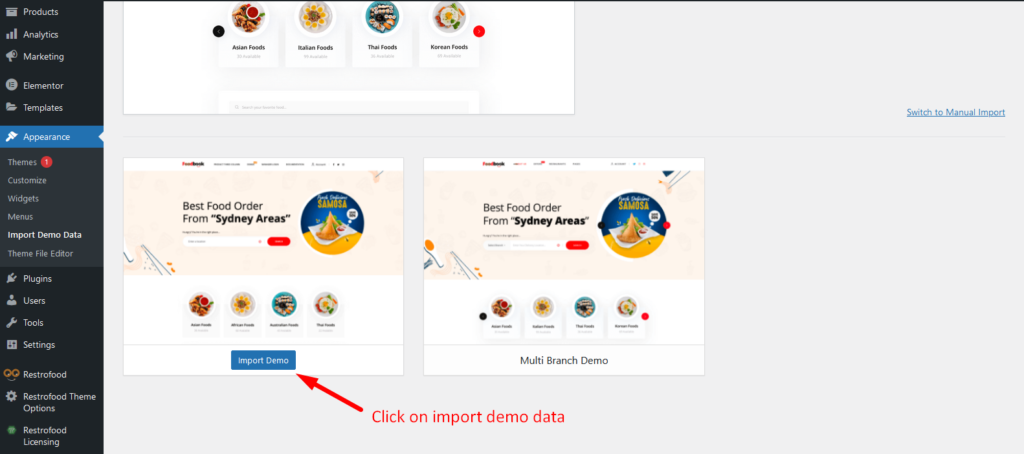
Restrofood Theme provides a one-click demo import system. So you could import demo data like our demo site easily. Before installing demo data you should install all required plugins and active restrofood plugin license.
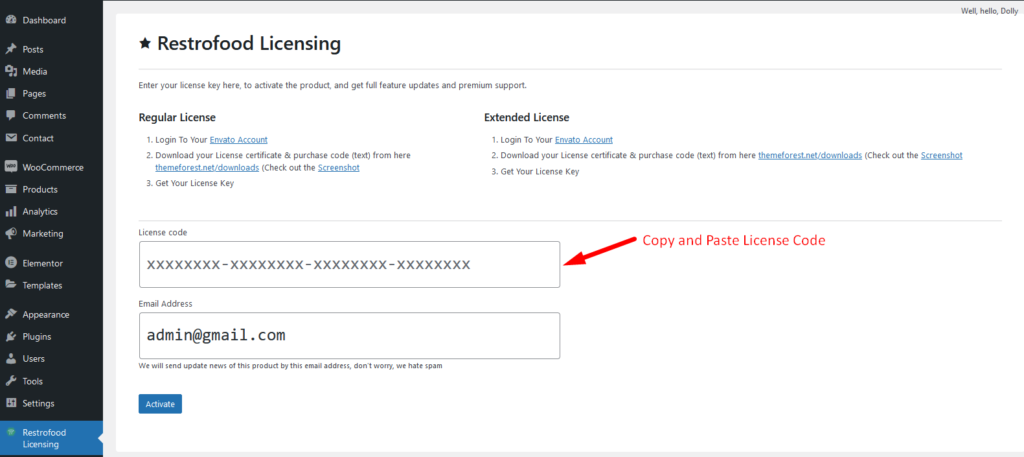
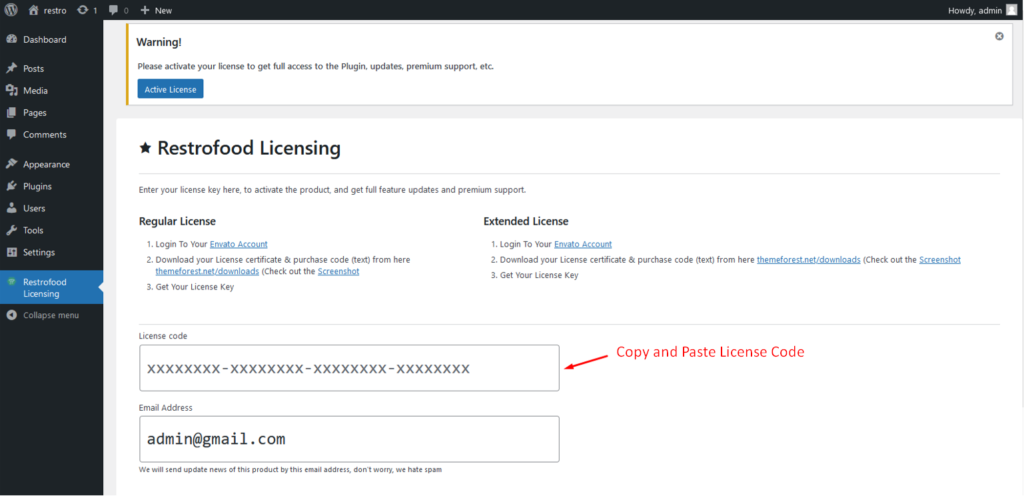
Before import demo data make sure you have activated the restrofood license:
Import demo data:
-
How to install RestroFood Theme?
Go to Appearance -> Themes -> Add New -> Upload Theme -> Browse and Install Now
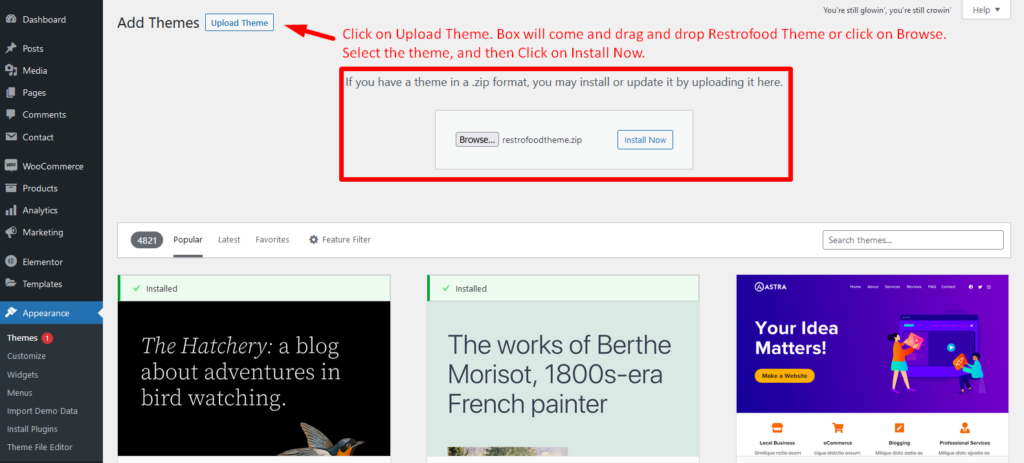
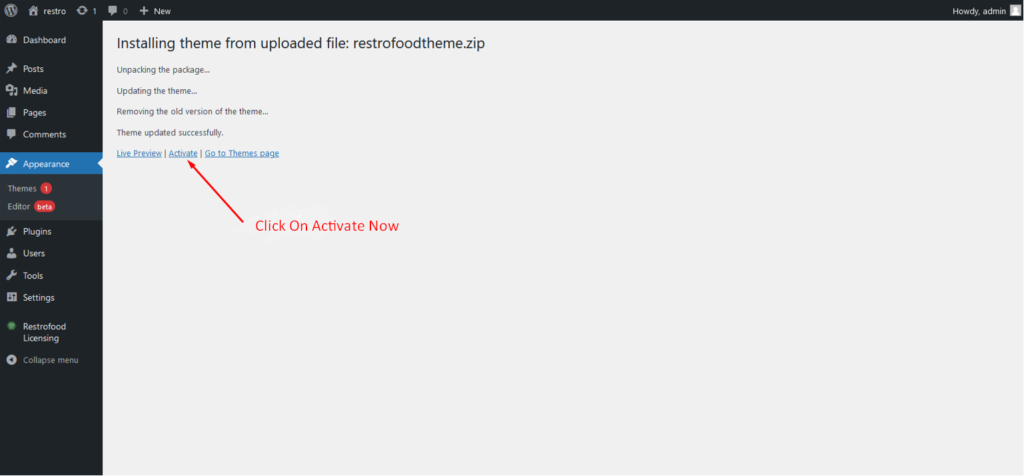
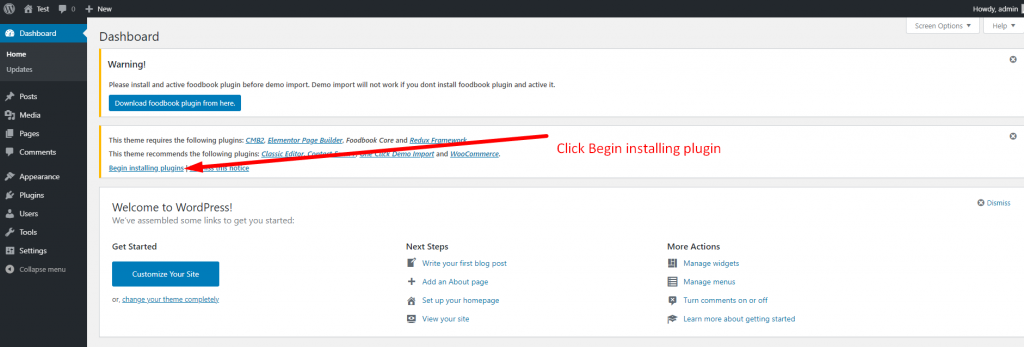
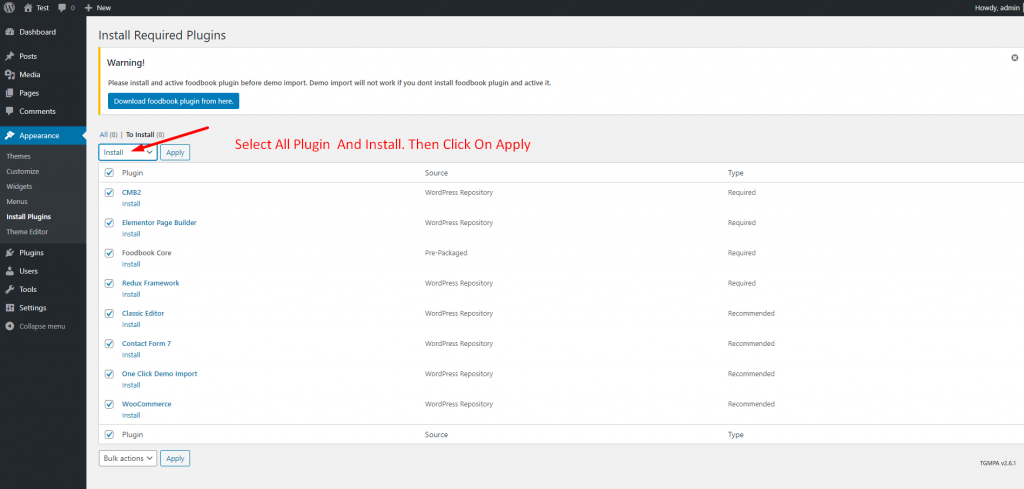
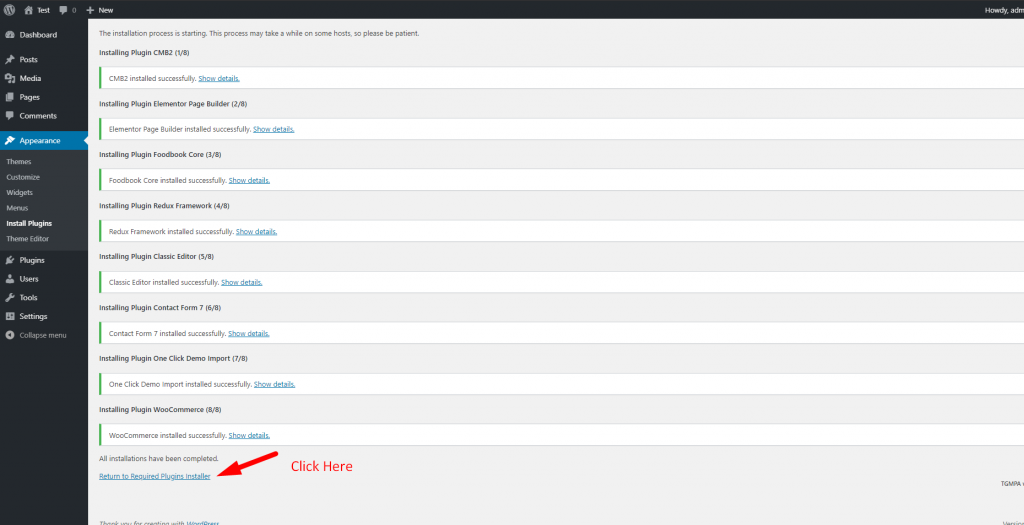
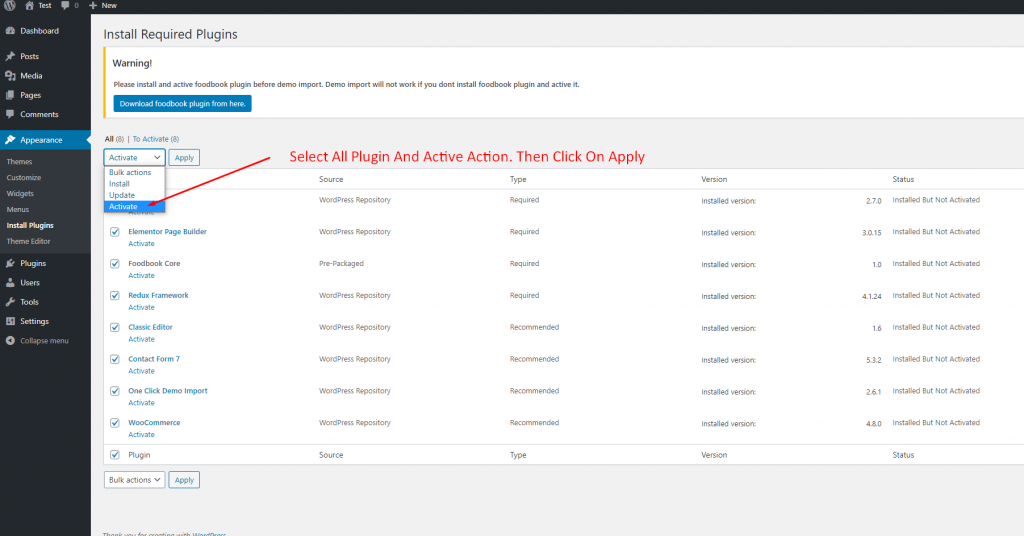
You will need to install some required plugins to work the theme properly. Follow the below screenshot.
-
How to install RestroFood WordPress Plugin?
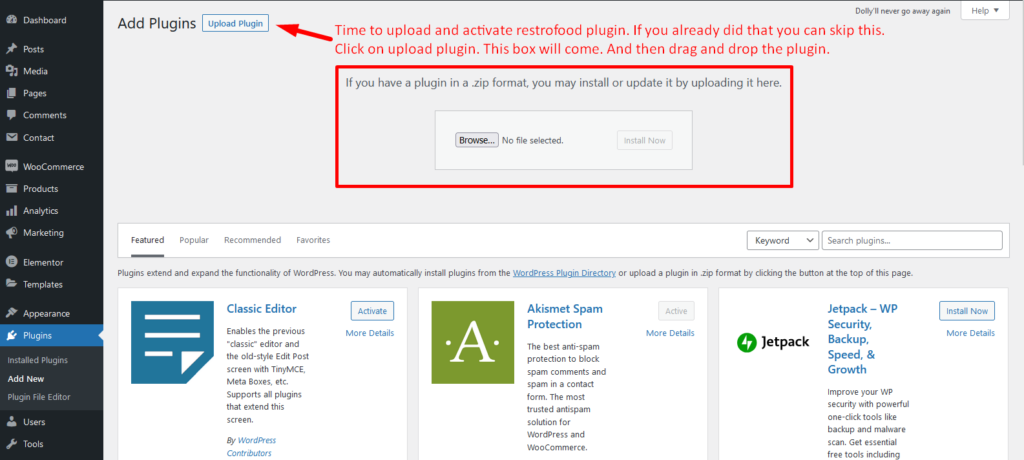
Download The copy of the plugin as a zip file, you can manually upload it and install it through the Plugins admin screen.
- Navigate to Plugins > Add New.
- Click the Upload Plugin button at the top of the screen.
- Select the zip file from your local filesystem.
- Click the Install Now button.
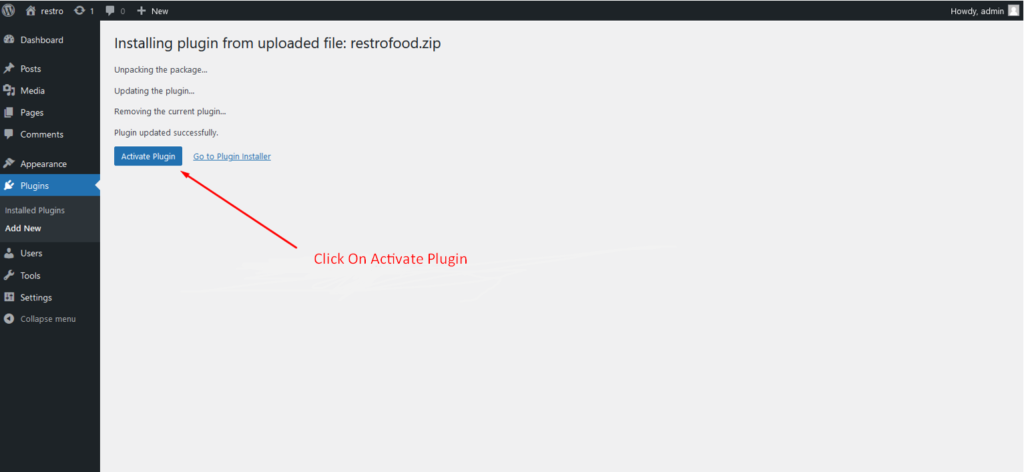
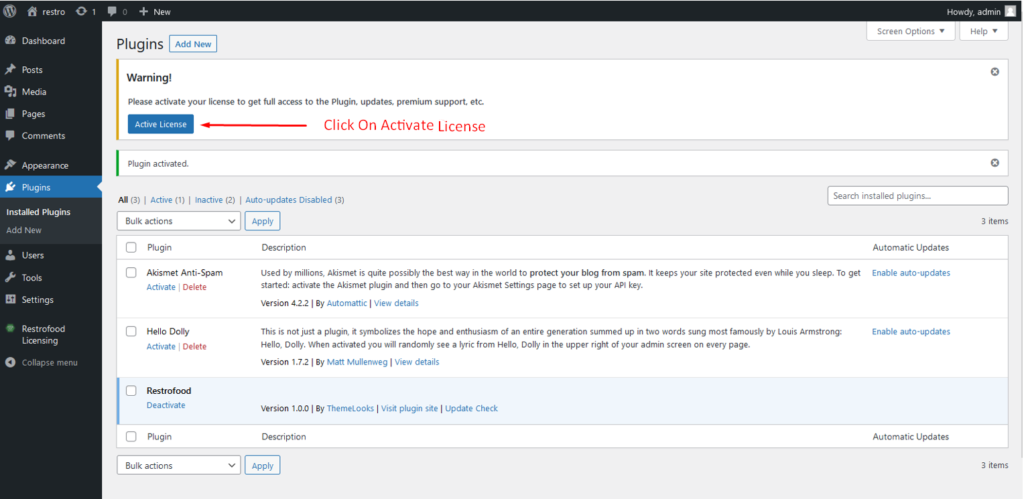
- When the installation is complete, you’ll see “Plugin installed successfully.” Click the Activate Plugin button at the bottom of the page.
-
Required Plugins Dependency
RestroFood WooCommerce quick order branch management system depends on WooCommerce plugin. So you have must be installed WooCommerce Plugin before use RestroFood plugin.

